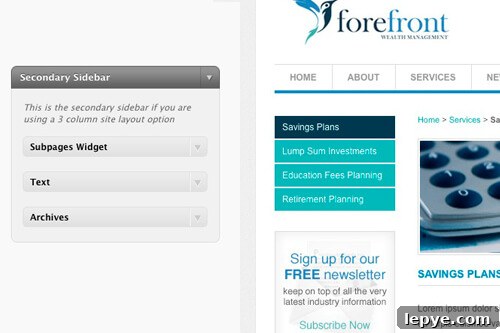
Once you’ve created a sidebar, the next step is often to add custom code to it. If an existing widget doesn’t meet your needs, you have a few choices:
- Use a plugin that executes PHP inside widgets. Don’t do this: a PHP error can lock you out of WordPress and make it difficult to recover without direct database edits.
- Place the code before or after the widget in a theme file or, if you use Thesis or Genesis, attach it with a hook. This works for content that belongs strictly at the top or bottom of a sidebar, but it lacks flexibility and doesn’t give end users the ability to remove or manage the code from the Widgets screen.
- Build a custom widget.
For a while I used option 2 because I assumed building a widget would be too time-consuming for small snippets. After reading Justin Tadlock’s comprehensive post on widgets, I began creating my own.
If the widget will only ever be useful with one theme, include its code directly in the theme. If the widget could be reused across themes or for other clients, build it as a plugin so it’s easy to add to future projects. Examples from my recent work include:
- Theme-specific widget: navigation for a custom post type (for example, when viewing a Person page, list related People posts grouped by Role).
- General widgets: a Subpages widget and a Twitter widget. For the Twitter widget I adapted the official Twitter widget into a WordPress plugin so all configuration can be handled on the Widgets page.
There are two main types of widgets you can build:
No Options Widgets
These widgets provide no settings or input fields on the Widgets page. When added to a sidebar, they display “There are no options for this widget.” They’re ideal for inserting a fixed piece of functionality into a sidebar without exposing settings. A common example is a Subpages widget.
The widget code is typically structured in three parts: code that registers the widget at the appropriate hook, the class that extends WP_Widget (so you can leverage WordPress’s widget framework), and the widget() method that outputs the widget’s HTML. For the Subpages widget the widget() method does the following:
- Check whether the current page has a parent. If it does, retrieve all children of that parent; if not, retrieve the current page’s children.
- If there are any child pages, output an unordered list of them.
- Wrap the widget output in the provided
$before_widgetand$after_widgetvariables only when there is content to display, avoiding empty widgets on the Widgets page and front end.
Widgets with Options
Widgets can also expose options on the Widgets page so users can customize title text, behavior, or other settings. When extending WP_Widget you add two extra methods in addition to widget(): form() to render the admin form shown on the Widgets screen, and update() to sanitize and save new values when the user clicks “Save” or “Update.”
Extending the Subpages widget to include a Title field typically involves these steps:
- Load the saved title value at the start of the widget() method.
- After outputting
$before_widget, check whether$titlehas a value; if so, output$before_title, the title itself, and$after_title. - In update(), sanitize the title (for example, strip tags) before saving to the database.
- In form(), define default values, load current values (or fall back to defaults), and render the input fields for the user to edit.
This pattern keeps the widget flexible and user-friendly while leveraging WordPress’s built-in widget API for consistent behavior on both the admin and front end.
For a thorough walkthrough and examples, see Justin Tadlock’s guide: “The complete guide to creating widgets in WordPress 2.8.”